
Save Downloaded Videos on Android, iPhone, and Desktop
Updated: 15 October 2026
Preparing a file and saving it on your device are separate steps. This guide explains how to find an authorised video after the downloader says it is ready.
Before you start
Use a video you own or have permission to save. Copy its individual share link and submit it on the downloader. Wait for the result, then select Download video. The advertisement is separate from this control and is never required to obtain a file.
The tool uses your browser’s normal file-download mechanism. It cannot choose a folder for you, grant storage permissions on your device, or add a file directly to your photo library.
Android: check Downloads first
- Select Download video when the file is ready.
- Accept your browser’s download prompt if one appears.
- Open the browser’s Downloads list, or the Files app and its Downloads location.
- Open the saved MP4 in a media player. If you want it in another app, use your device’s share or move controls.
Menu names vary by browser and Android version. A downloaded file may not immediately appear in a gallery app. Check the file manager before preparing another copy.
iPhone or iPad: use Files
After selecting the download link, check your browser’s download list and the Files app. Depending on your browser and settings, the file may be saved locally or to a Downloads folder in iCloud Drive. The service does not decide which storage location is used.
Open the file from Files to confirm it saved correctly. If your device offers an option to save or share it to Photos, that is a separate action. Availability depends on the browser, file format, and device software; we do not promise automatic Photos imports.
Windows, macOS, or Linux
Check your browser’s downloads panel. If it asks where to save the file, choose a folder you can find again. Otherwise, use the default Downloads directory. Open the MP4 in a local video player after the transfer finishes.
The generated filename identifies the platform and request rather than the creator’s video title. You can rename your authorised copy after it is saved.
If a transfer is interrupted
The same temporary link remains usable until the expiry shown with the result. Retry it before that time. Your browser may offer a resume option, but resume behaviour depends on the browser. A completed file link can handle byte-range requests; it cannot resume after the file expires.
Check that your device has free storage, keep the browser active during the transfer, and avoid switching networks mid-download. If the link has expired, submit the original source URL again rather than reusing a bookmark to the temporary file.
A working example of the service’s flow
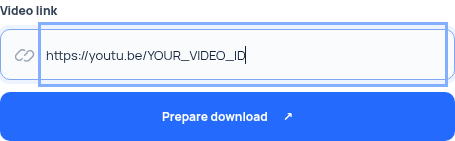
This diagram describes the site’s controls. Platform URL examples in the video guides are format examples, not sample media files. Source availability can change even when your device is working correctly.
When saving still fails
Read download troubleshooting to distinguish a missing file, source restriction, or connection failure. A streaming fallback is an upstream media address, not a prepared local file; the browser may only let you play it.
Email support@alpha1.ng with the error message, source platform, and device/browser type if you need help. Do not send passwords or session cookies.